Too many open files: when a service runs out of file descriptors
The server has free memory and disk space, yet the service fails. Check file descriptors, actual process limits and the reason usage keeps growing.
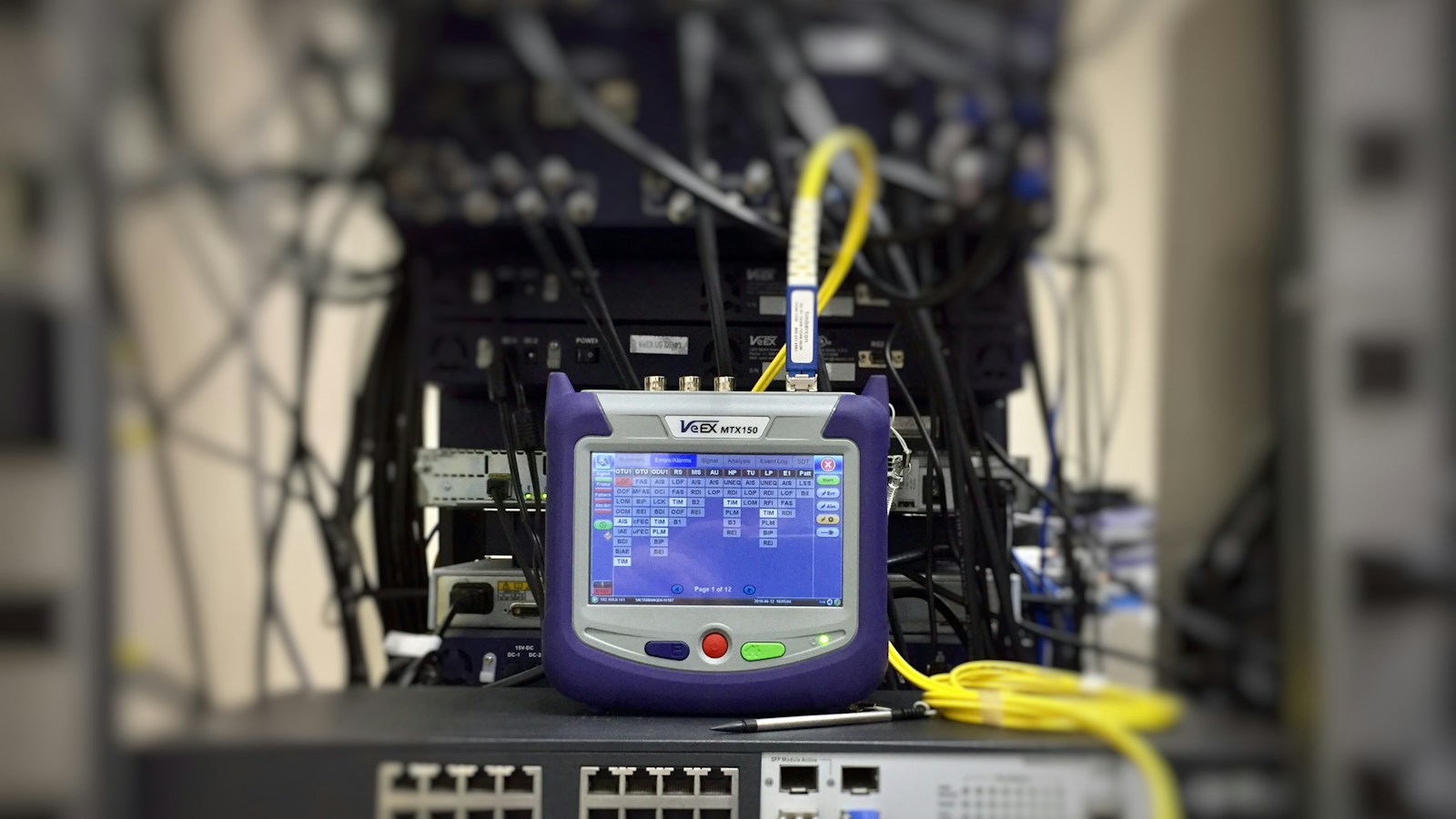
A website stops accepting some requests and Too many open files appears in the log. Disk space still looks healthy. The error's name may suggest a large collection of documents, but descriptors also serve sockets and pipes. A new network connection needs a descriptor too. This guide covers Linux; the service configuration examples assume a service started directly by systemd.
Identify the exact error and the process reporting it
When opening a file, EMFILE identifies an exhausted per-process descriptor limit. ENFILE means the system-wide limit on open files has been reached. Check the error details for this distinction. The same intervention may not solve both cases. Record the time, PID, service name and failed operation; text from the user interface alone may omit an essential detail.
For a service started by systemd, systemctl show --property=MainPID web.service provides the main process ID. web.service is an example unit name. If workers handle requests, also find the specific failing process. When reading /proc, use a PID in the same process namespace. Output from another process or a new instance after a restart cannot replace evidence from the original incident.
Read the running process's limits
Run cat /proc/PID/limits, replacing PID with the actual identifier. Compare the soft and hard limits in the Max open files row. The soft limit is enforced; the hard limit is its ceiling for an unprivileged process. Record both with the observation time. A high hard limit does not establish that the process currently uses an equally high soft limit.
ulimit -n in an administrative shell describes that shell's own context. Child processes inherit limits when created, and those limits survive execve(). A change in that terminal therefore does not retroactively change a running service. With multiple processes, inspect the affected PIDs individually. If the application adjusts its own limits, compare startup configuration with the actual state after initialisation.
Track what is keeping descriptors open
ls -l /proc/PID/fd shows entries named by descriptor number and their symbolic links. For sockets and pipes, the links also show the type and inode. Permissions may restrict access; missing access does not mean zero usage. Limit the details you share when handing over the output, because path names can expose the service's internal structure.
Compare repeated snapshots under similar load and after work finishes. A growing count may reflect greater concurrency, an intentionally retained pool or missing resource cleanup. One snapshot does not prove a leak. In the application, check file and connection release after errors and cancelled operations too. close() releases a descriptor for reuse; manage resources through the relevant runtime's mechanisms.
Verify a limit change together with application behaviour
For a service started directly by systemd, LimitNOFILE= configures the limit; a soft:hard pair sets the two values separately. Check application compatibility before raising it: select() on Linux cannot handle descriptors above 1023. Base the required headroom on concurrency and measurements. A higher limit can be a reasonable capacity change, but it does not explain usage that continues growing without an expected reason.
systemctl daemon-reload alone reloads the manager configuration; it does not restart the service. Plan the change around the service's startup method and availability. After a controlled restart, verify /proc/PID/limits for the new processes and repeat the previously failing operation under comparable load. Monitor errors and the descriptor trend. Alert on remaining headroom to the enforced limit; for ENFILE, extend the investigation to the entire host.
- Distinguish EMFILE from ENFILE and find the correct PID.
- Verify the running process's soft and hard limits.
- Compare usage during load and after work completes.
- After a change, repeat the operation and track what happens next.
What to take away
For Too many open files, start with the specific process and its actual limits. Measure what it keeps open and distinguish expected concurrency from resource management errors. Confirm the repair through a completed user operation and stable behaviour under the relevant load.
Documentation and further reading
- Linux man-pages: open(2), EMFILE and ENFILE
- Linux man-pages: accept(2), connections and descriptors
- systemd: systemctl, MainPID and daemon-reload
- Linux man-pages: proc_pid_limits(5)
- Linux man-pages: getrlimit(2), soft/hard limits and inheritance
- Linux man-pages: proc_pid_fd(5)
- Linux man-pages: close(2)
- systemd: systemd.exec, LimitNOFILE and select compatibility
- Linux man-pages: pid_namespaces(7), process identifiers and proc